

User guide
What it does
Some videos will not preview on a Mac. Select the file, press the spacebar, and nothing happens — though it plays fine in VLC. Usually it is a .mkv. The video inside is fine; macOS just does not open that kind of container.
mp4ify swaps the container. Same picture, same sound, now in an MP4. In most cases nothing is re-encoded, so quality is identical and it takes seconds.
The goal is not an MP4. The goal is a file that previews with the spacebar, plays in QuickTime, and imports anywhere.
Everything runs on your Mac. Nothing is uploaded.
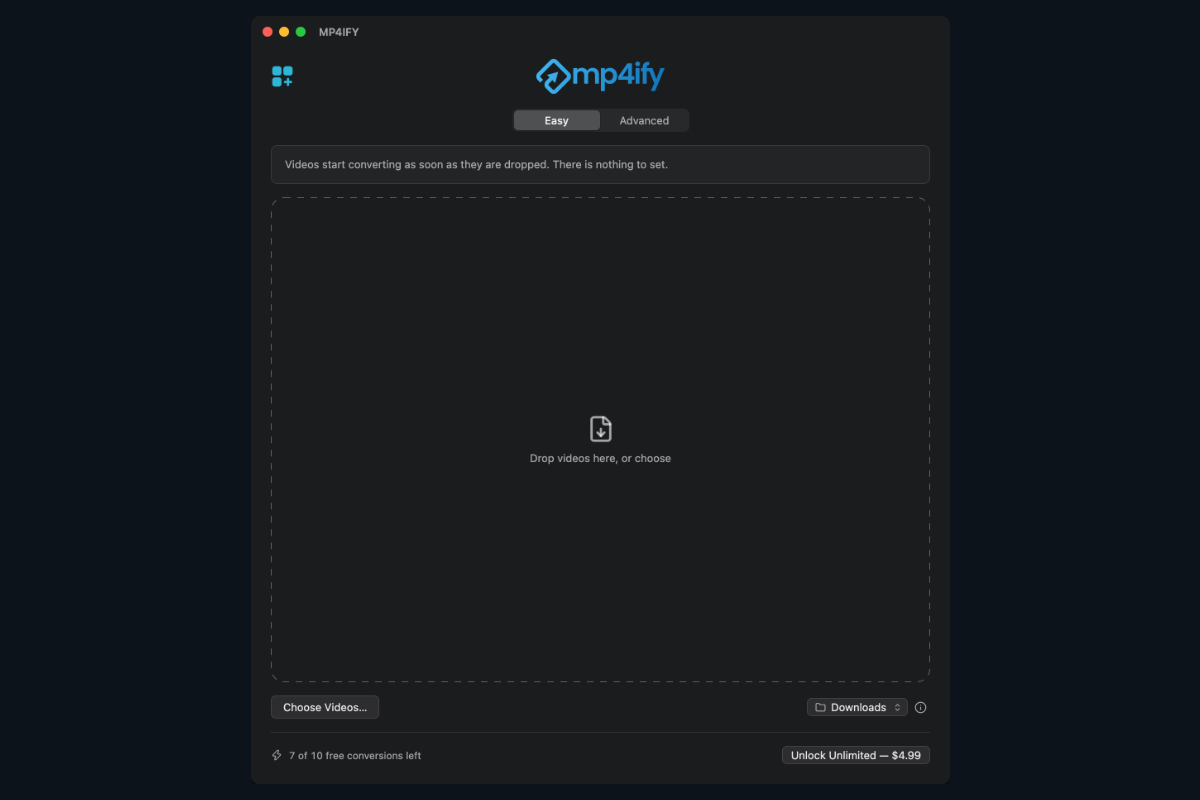
Empty window, Easy tab
Quick start
1. Open mp4ify.
2. Stay on the Easy tab.
3. Drag your videos onto the window.
They convert immediately. When the batch ends, Finder opens with the results selected so you can spacebar-check them.
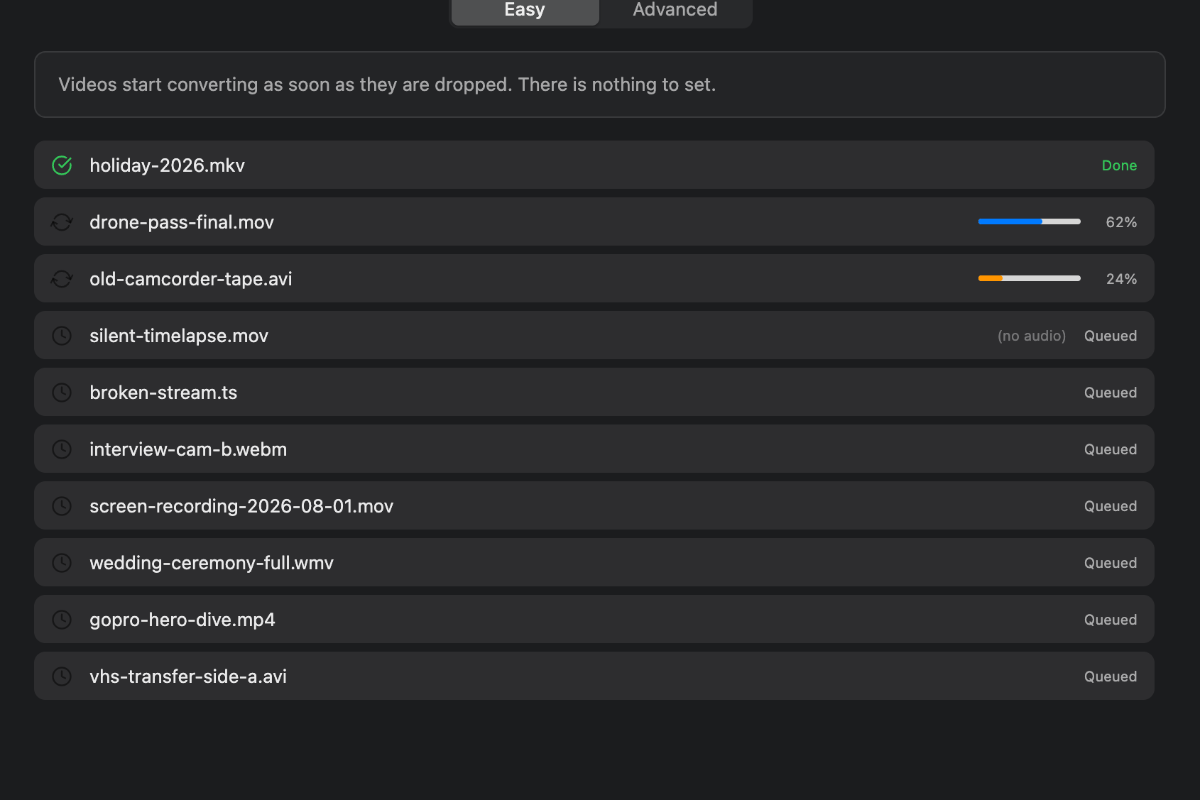
Easy, mid-conversion
Easy or Advanced
• Easy — no settings at all. Starts on drop. Use it for “just make this work”.
• Advanced — video, audio, size, frame rate and audio format. Starts when you press Start. Use it for shrinking, changing frame rate, and extracting audio.
Each tab keeps its own list. Switching tabs never moves files and never starts anything. A tab holding files says so: Advanced (10). The number counts what is still to convert, so it falls as the batch finishes.
Advanced
Settings belong to each file
Click a file and the panel shows that file's settings. Click another and it changes. A 4K clip and a phone video keep their own size, rate and choices.
There is no single output size for the queue. Files are different shapes; one width for all would squash the portrait ones or blow them up.
To change several at once, select them first. The panel says “Applying to 4 selected files.” Nothing is written to the others until you actually change something.
Advanced panel, defaults
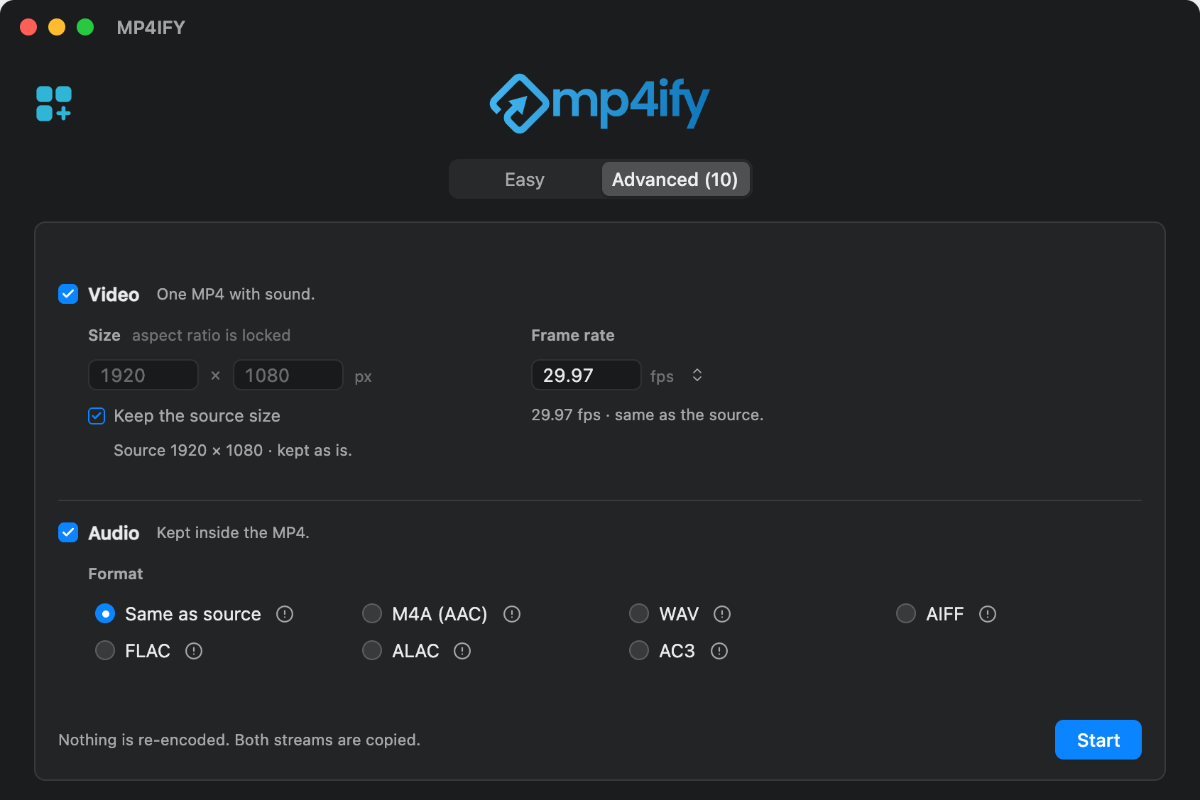
One file selected
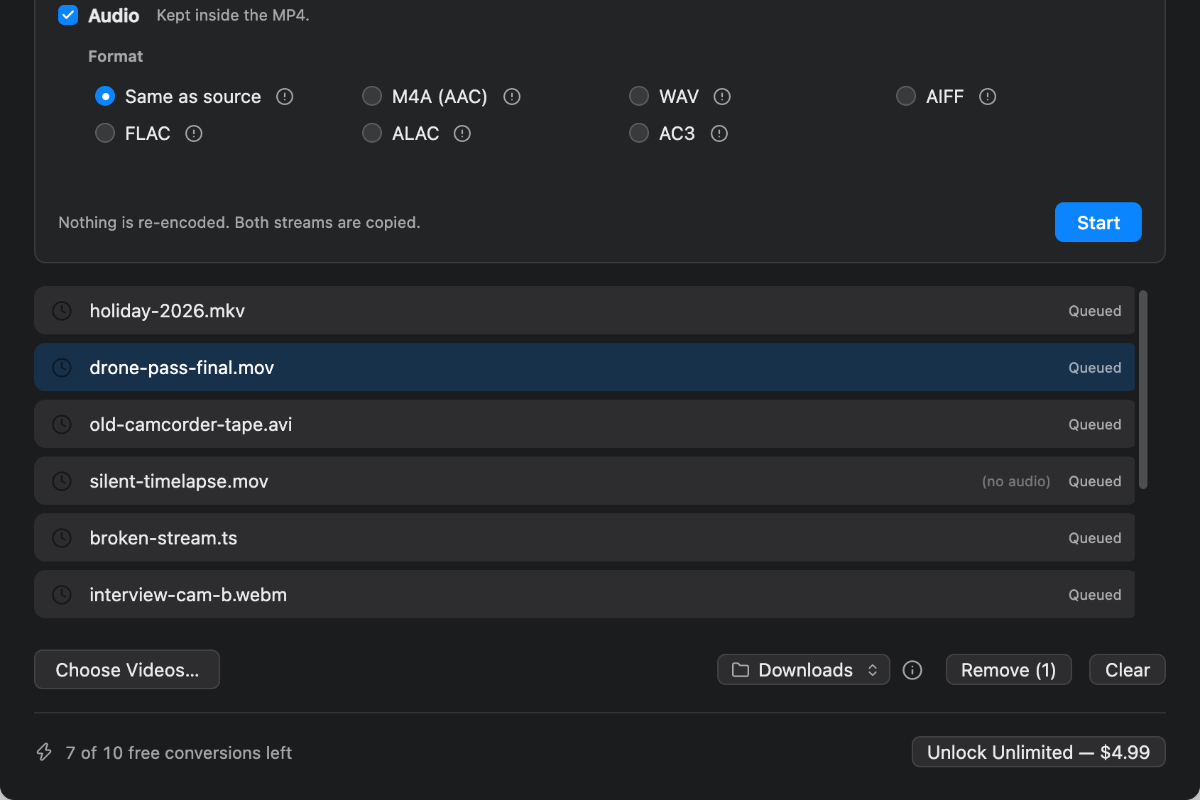
Several files selected
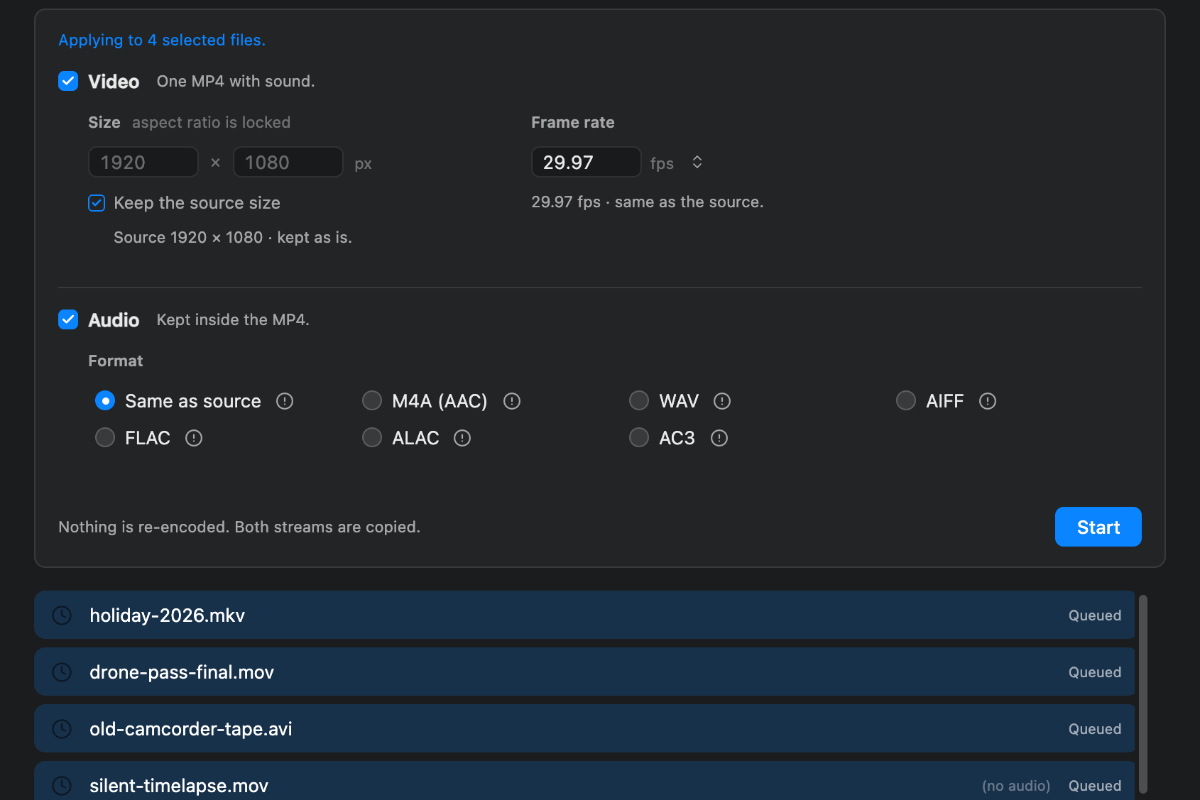
Video and audio
Video decides whether the output has a picture.
• On — you get an MP4.
• Off — you get an audio file. Size and frame rate grey out.
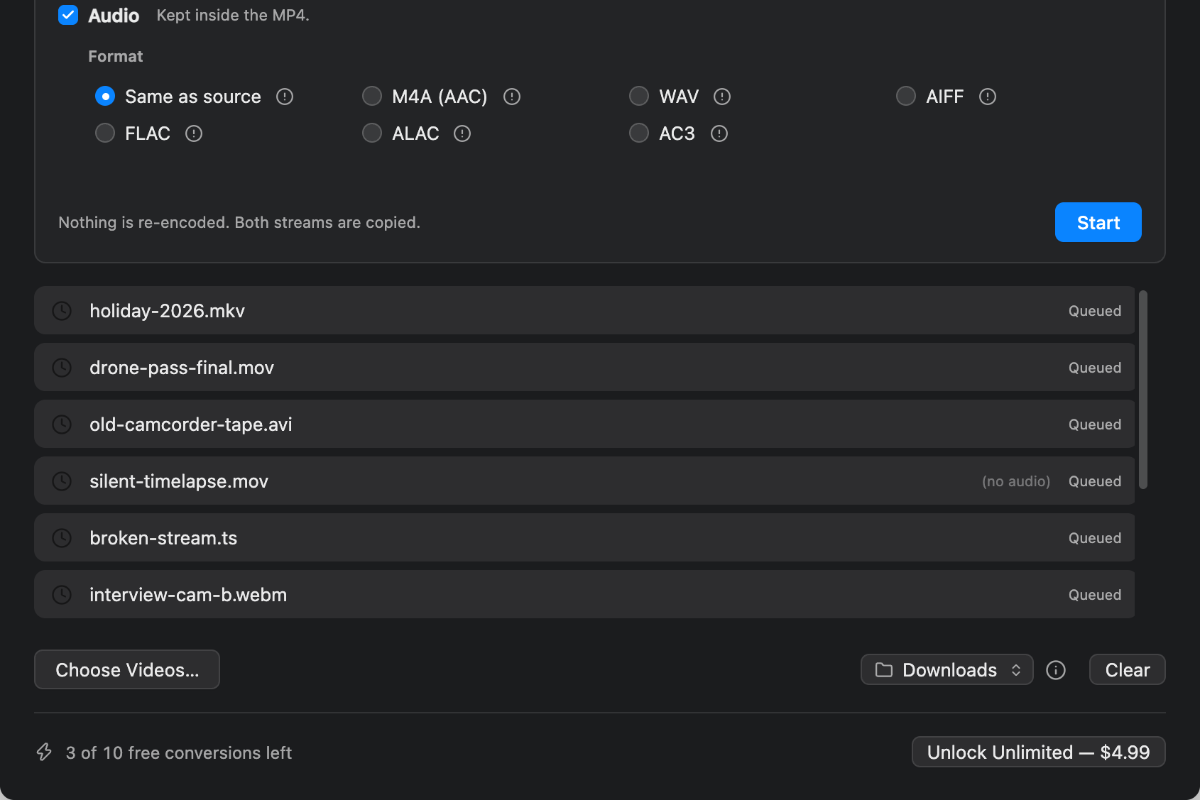
The line beside each checkbox says what you will get:
• Video on, audio on — One MP4 with sound.
• Video on, audio off — One MP4 with no sound.
• Video off, audio on — No video is written. You get an audio file only.
A file cannot switch on what it does not contain. A video with no sound arrives with Audio unticked; an MP3 arrives with Video unticked. Per file, so other files are unaffected.
Both cannot be off. The click is refused and both captions turn orange:
- At least one of Video and Audio has to stay on.
The checkbox stays clickable on purpose, so you are told why.
Video unticked
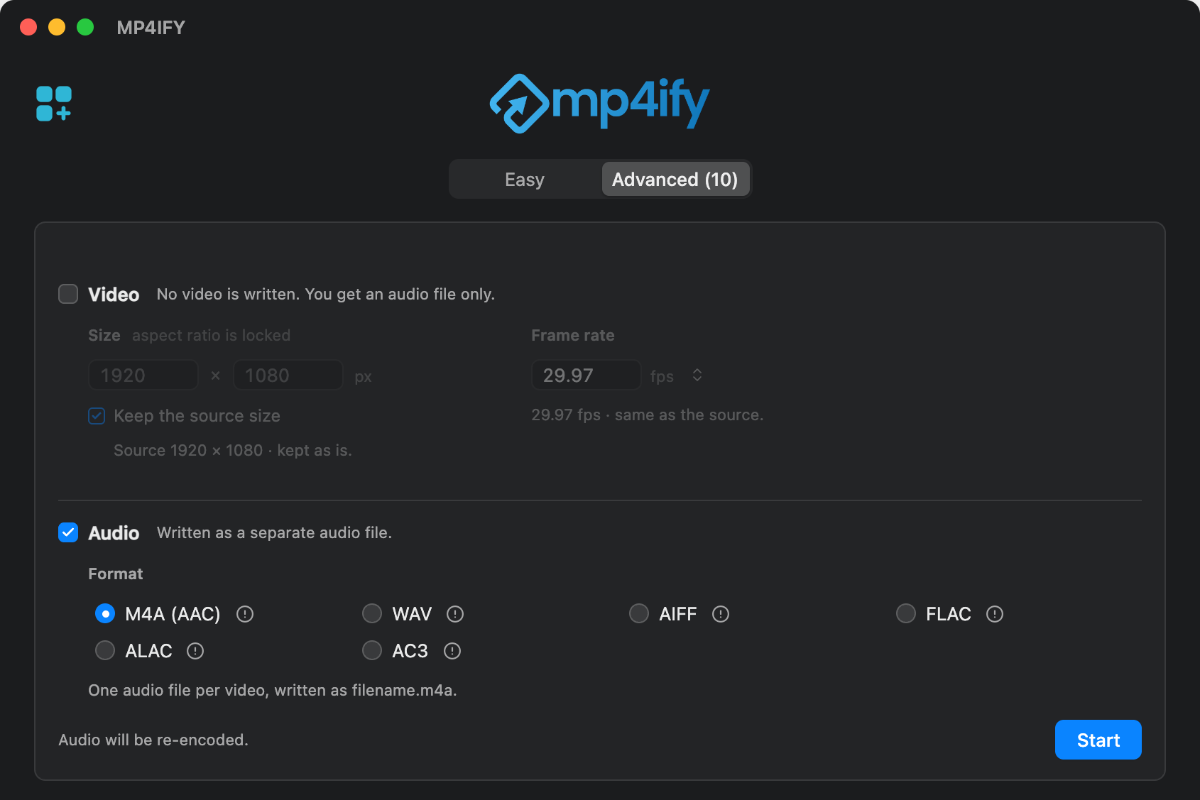
The refusal
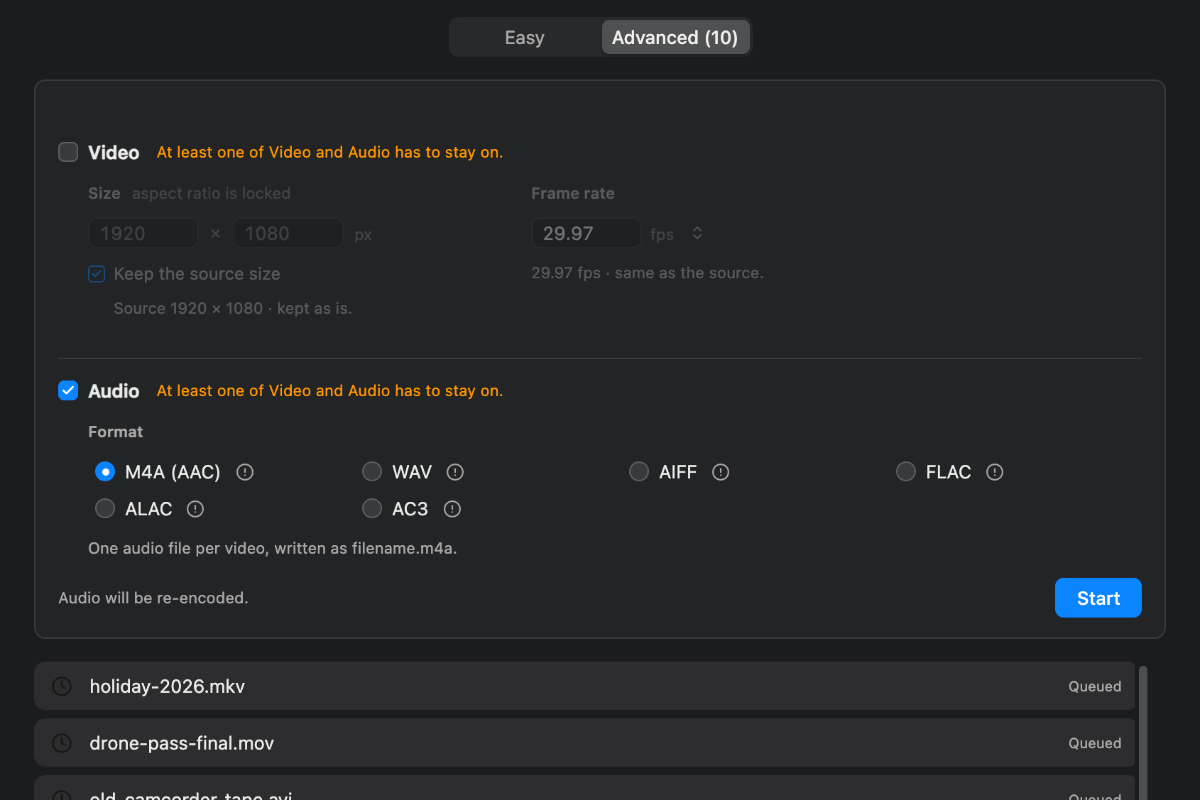
Size
Keep the source size is on by default; the fields show that file's dimensions, greyed.
Untick it to type a size. Aspect ratio is locked — type a width, the height follows. The number you typed stays white, the calculated one goes grey.
The side you type wins. The other follows that file's own shape, so a portrait video is never flattened when several files are resized together.
The caption under the fields tells you what you are about to get:
• Keeping the source size — Source 1920 × 1080 · kept as is.
• Smaller — Source 1920 × 1080 · output is 44% smaller.
• Larger — Larger than the source. The picture will not get sharper.
• An odd number — Will be encoded as 1280 × 720. H.264 needs even numbers.
• Beyond the encoder — Too large for this Mac. It encodes up to 4096 in either direction.
Enlarging adds no detail — it stretches what is there. mp4ify does it if you ask, and says it will not help.
H.264 needs even numbers. An odd result is rounded down by one pixel, and mp4ify tells you the number it will use.
The last one is a hard limit. Your Mac cannot encode a frame over 4096 pixels in either direction. The caption turns orange and Start greys out.
Frame rate
Type any rate, or use the ⌃⌄ button beside the field:
- Source · 23.976 · 24 · 25 · 29.97 · 30 · 50 · 59.94 · 60
The current rate is checkmarked. Source (29.97) restores the file's own rate.
• Unchanged — 29.97 fps · same as the source.
• Higher — Frames will be duplicated. Motion will not get smoother.
• Lower — Frames will be dropped. Source is 29.97 fps.
Raising the rate cannot smooth motion — the extra frames are copies. Lowering it drops frames, so fast motion looks choppier.
Frame-rate presets open
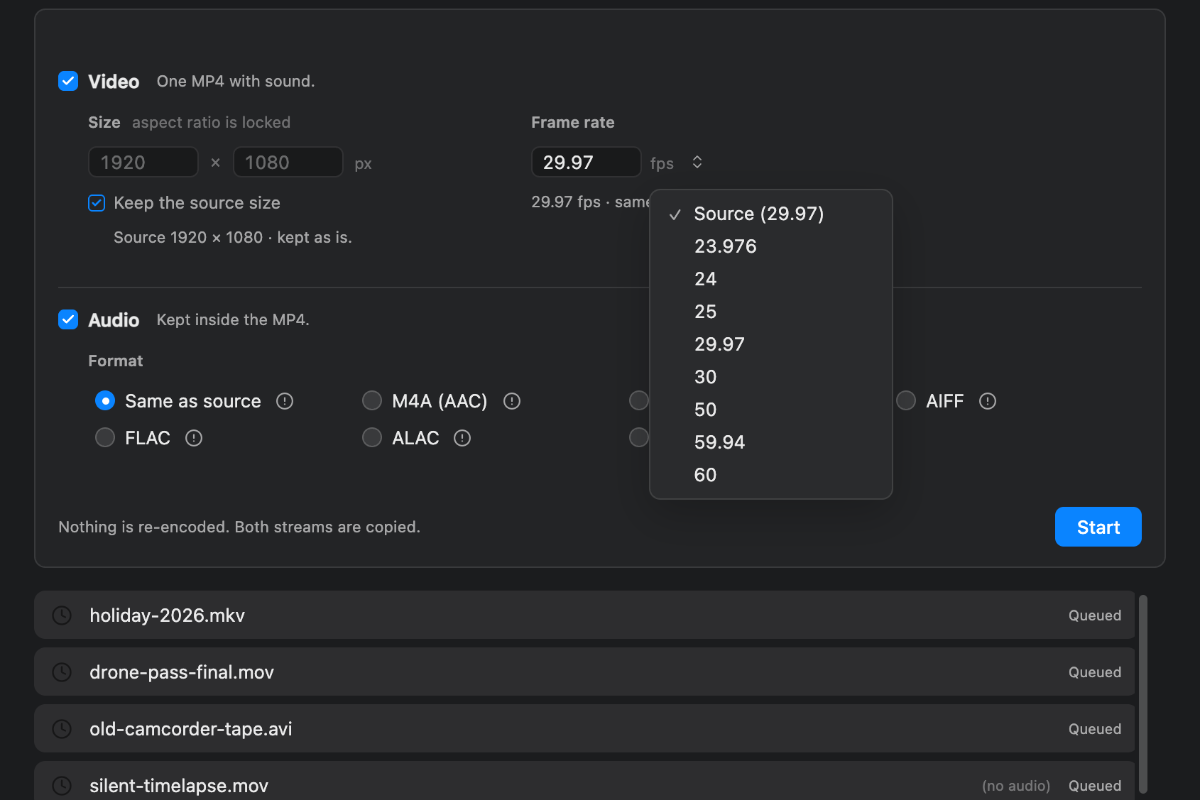
Audio format
What matters is whether the sound is copied or rebuilt.
Same as source copies the sound untouched. Nothing is lost. This is the default and almost always right. It is only available while Video is on.
The rest rebuild the sound, spending a little quality:
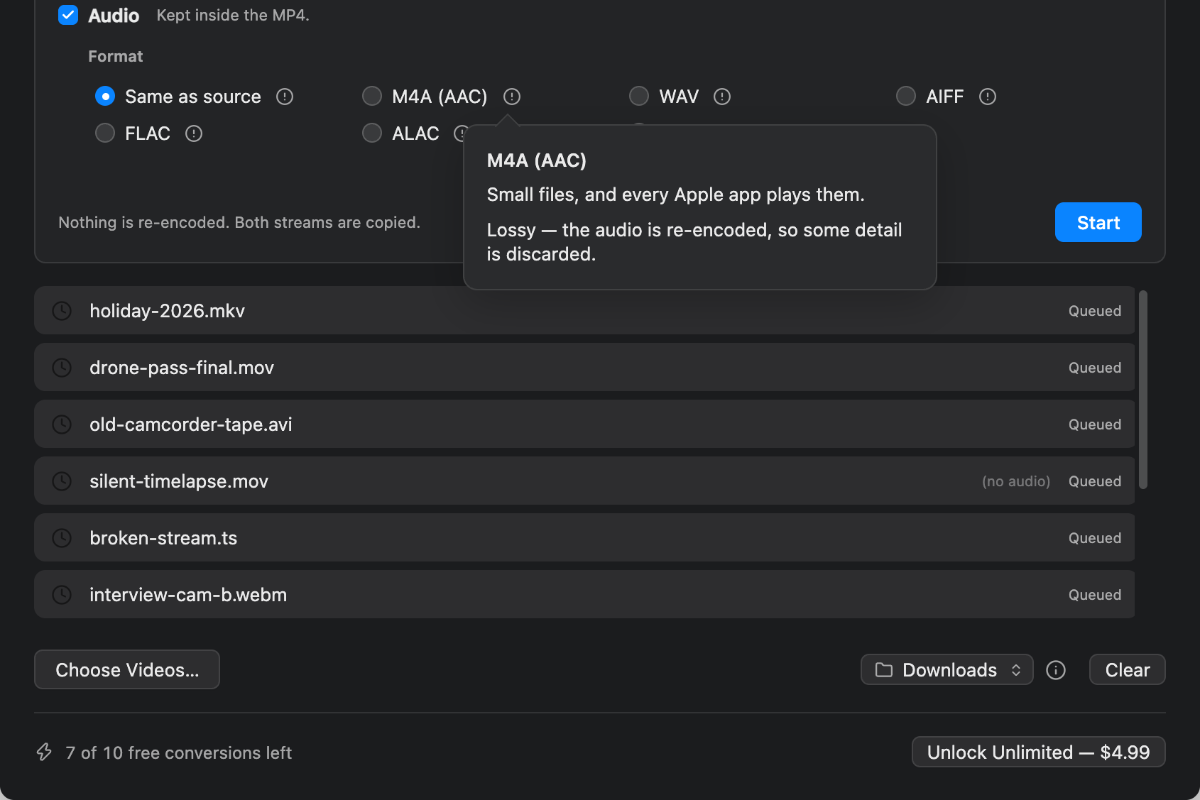
• M4A (AAC) — small, and plays in every Apple app. Choose it when you want small and universal.
• WAV — uncompressed, opens in every editor. Choose it when the sound is heading into an editor.
• AIFF — uncompressed, in Apple's container. Same size and quality as WAV.
• FLAC — lossless, about half the size of WAV. Choose it for lossless but smaller.
• ALAC — Apple Lossless, plays in Music and QuickTime. Choose it for lossless inside Apple.
• AC3 — surround, up to six channels. Choose it when the source has more than two channels.
Each one has an ⓘ explaining the trade-off.
With Video off, “Same as source” leaves the grid and a line shows the file name you will get:
- One audio file per video, written as filename.m4a.
Sound is sometimes rebuilt even when you asked to copy it. MP2 and MP3 tracks — found in .mpg, .vob and some .avi — copy into an MP4 happily and then play as silence on a Mac. mp4ify converts those to AAC and marks the row (Re-encoded).
Format ⓘ popover open
The line above Start
It states what is about to happen:
• Nothing is re-encoded. Both streams are copied.
• Video will be re-encoded. Audio is copied.
• Audio will be re-encoded. Video is copied.
• Video and audio will be re-encoded.
Copying is instant and lossless. Re-encoding is slower and costs a little quality, so mp4ify avoids it unless your settings require it.
Reset and Start
Reset puts files back to how they arrived: own size, own rate, own streams, Same as source.
• Nothing selected — resets every file.
• Files selected — resets only those.
It is available whenever any selected file has been changed, so you never have to hunt for the untouched ones first. Reset cannot switch on a stream a file does not have.
Start converts everything queued in Advanced, one file at a time. It is greyed out when nothing is waiting, while converting, and when the size exceeds what your Mac can encode.
Reading the list
Waiting
• Queued — waiting its turn. In Advanced, waiting for Start.
• (no audio) — no sound in this file. A silent result is expected.
Converting
A progress bar in one of two colours:
• Blue — copying. Fast, and lossless.
• Orange — re-encoding. Slower, and costs a little quality.
Finished
• Done — converted, nothing re-encoded. Identical quality.
• Done (Re-encoded) — converted, but a stream was rebuilt. Green means it worked; the grey note says how.
• Cancelled — stopped by Cancel. Nothing was written.
• No audio in this file — skipped. Audio-only was asked for and there is none.
• No video in this file — skipped. An MP4 was asked for and there is no picture.
• Too large for this Mac to encode — skipped. Bigger than the encoder accepts, and this file cannot avoid the encoder.
• Orange text with an ⓘ — failed. Click the ⓘ for the reason.
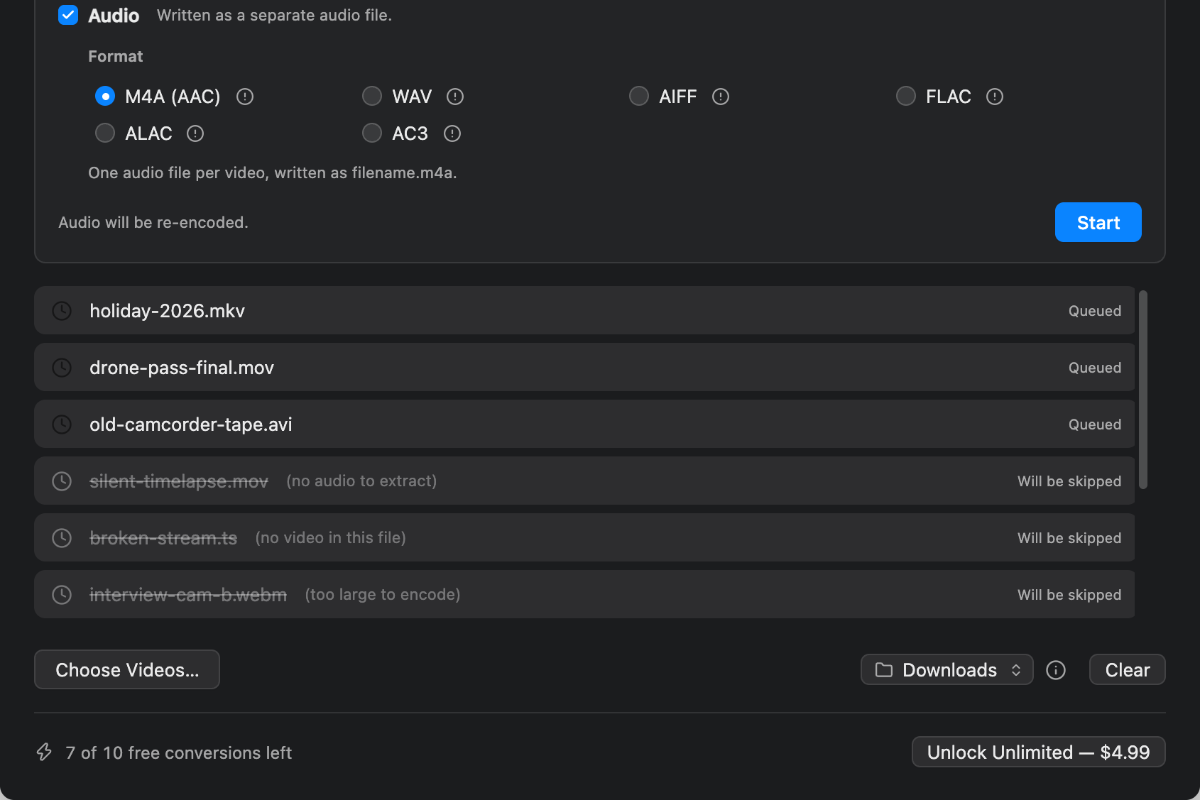
A line through the file name
It means this file will produce nothing with your current settings. It is not an error, and the file is not damaged. The status reads Will be skipped.
• (no audio to extract) — Video is off and this file has no sound. Switch Video on for this file, or remove it.
• (no video in this file) — Video is on and this file has no picture. Switch Video off for this file.
• (too large to encode) — over 4096 pixels and must be re-encoded. Set a smaller size for this file.
Settings are per file, so fixing one does not disturb the rest.
A struck-through row
Working with the list
Selecting
• Click — select one file and show its settings.
• ⌘-click — add or remove one file.
• Shift-click — select a range.
• ⌘A — select all.
• Esc — clear the selection.
• Click empty space — clear the selection.
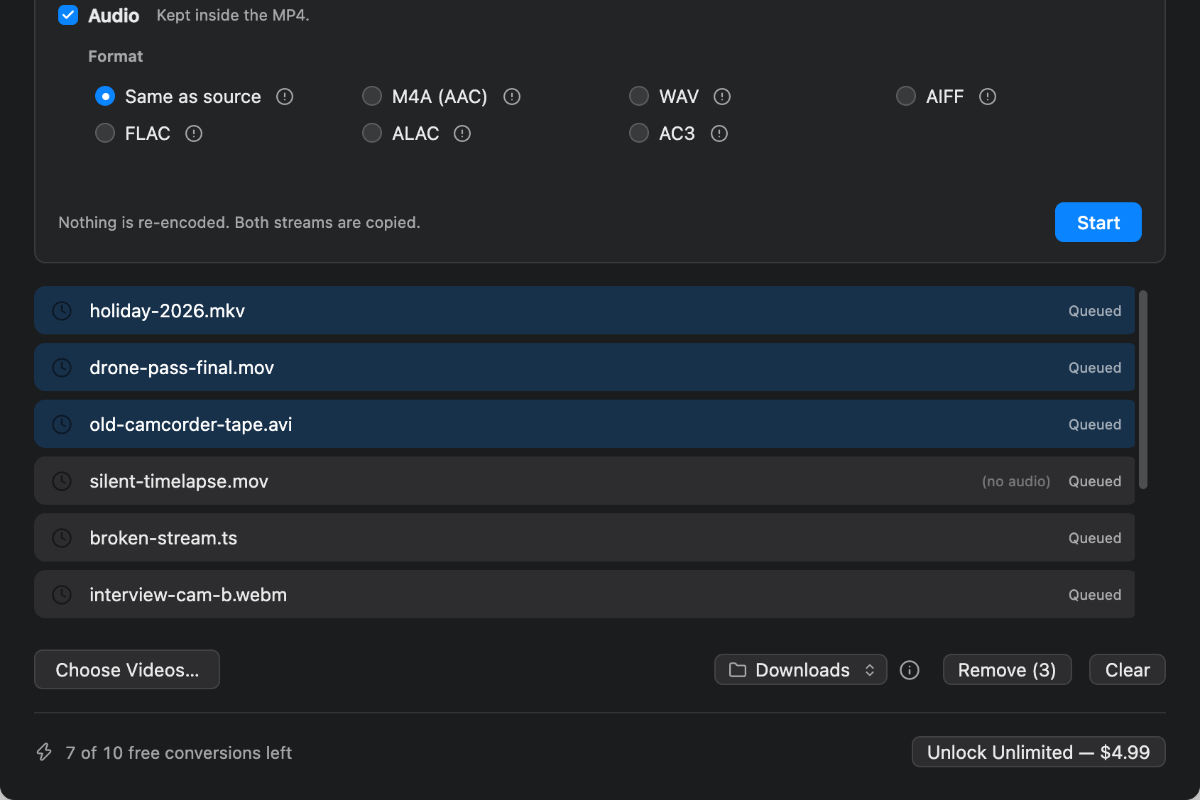
The selection is what the panel edits, and what Reset and Remove act on.
Removing
Remove (3) appears in the bottom row only while files are selected. Delete does the same. Right-click offers Remove from list, and right-clicking outside the selection acts on that row alone.
A file being converted cannot be removed. Press Cancel first.
Clear empties the visible tab's list. It is unavailable while converting.
Selection with Remove (3)
Adding
• Drag files onto the window.
• Drag a folder. mp4ify looks inside, subfolders included, and adds the videos. Hidden files and app bundles are skipped.
• Choose Videos… at the bottom left.
Files that are clearly not video — photos, PDFs, documents, archives — are left out. Anything uncertain is added and tried, because macOS does not recognise every format mp4ify can convert.
If a drop produces nothing, the bottom row says so briefly:
- That's not a video file.
Where files are saved
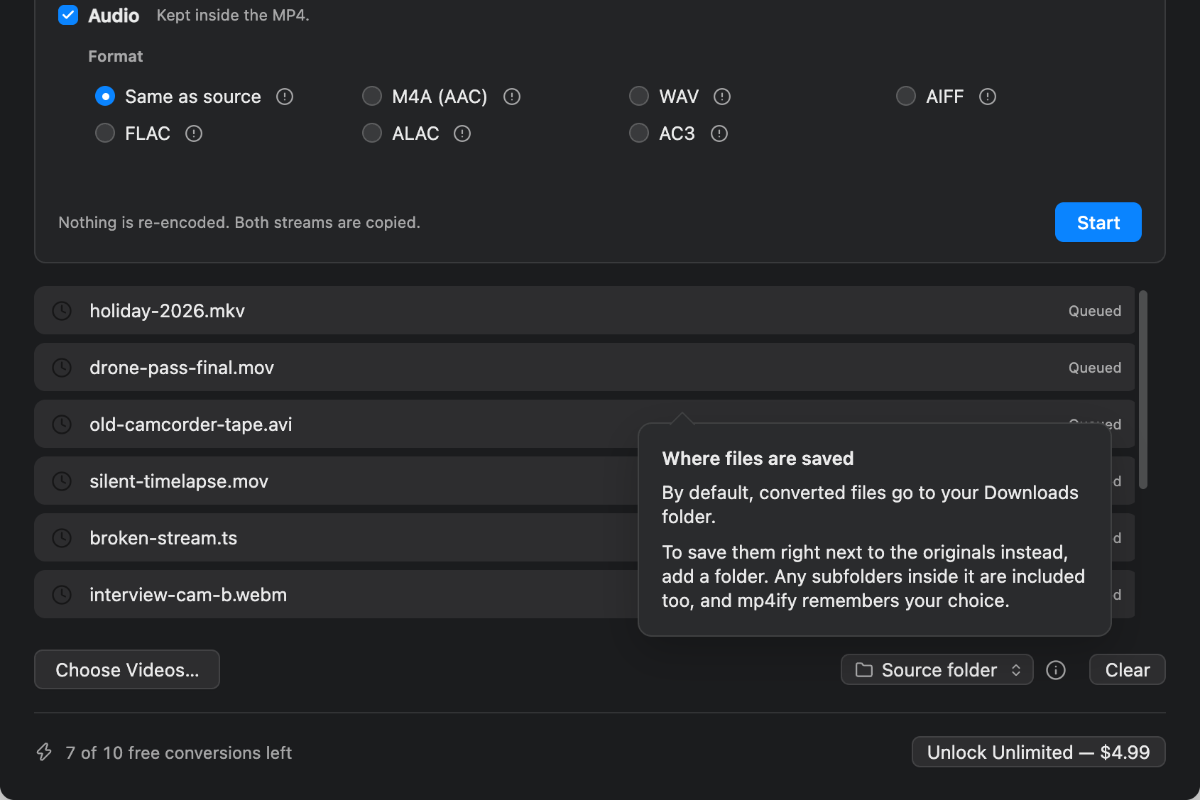
Downloads, by default.
To save files next to the originals, click the folder button at the bottom right and choose Add folder…. Videos inside that folder, and inside any folder within it, are saved beside their originals. Everything else still goes to Downloads. mp4ify remembers this.
Existing files are never overwritten. clip_mp4ify.mp4 is followed by clip_mkv_mp4ify.mp4, then clip_mkv_mp4ify-1.mp4.
Save-location popover
Free conversions
mp4ify converts 10 files free:
- 8 of 10 free conversions left
Only successful conversions count. Failures are free.
When they run out, the unlock sheet appears and the remaining files stay Queued. Buying resumes them automatically. Not Now leaves them queued.
Unlocking is a one-time purchase, not a subscription, and it works on any Mac signed in to the same Apple Account — use Restore Purchase there. Once unlocked, the bar disappears entirely.
Purchase bar, part-used
Formats
Tested with every release:
- 3GP · ASF · AVI · FLV · HEVC · M2TS · M2V · M4V · MJPEG · MKV · MOV · MP4 · MPEG · MPG · MTS · MXF · OGV · RM · SWF · TS · VOB · WEBM · WMV · WTV
Others are worth trying. mp4ify adds anything it cannot rule out.