

Troubleshooting
mp4ify converts videos into MP4 files a Mac can preview and play. Find your symptom below.
The converted file has no sound
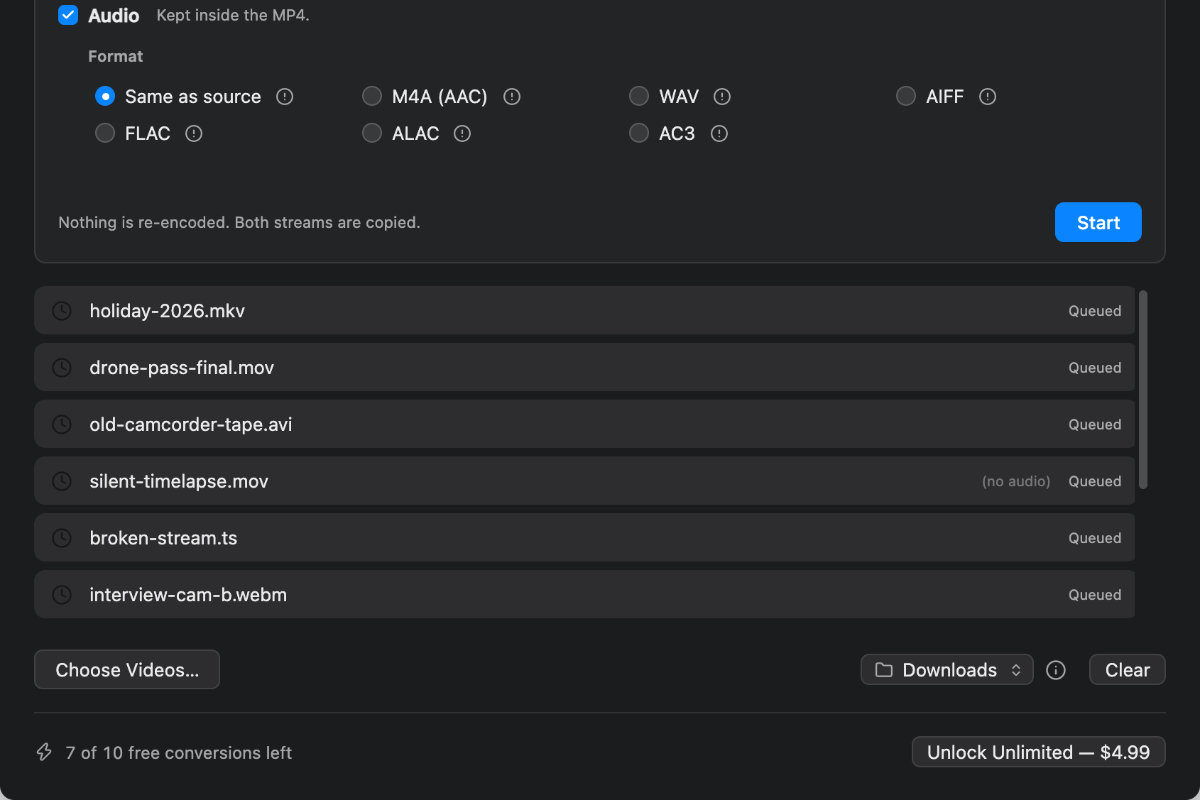
Check whether the original had any. When a file is added, mp4ify marks the row (no audio) if there is no sound in it. If you saw that, nothing was lost.
.hevc, .mjpeg and .m2v are raw video streams with no container, so they cannot carry sound at all. A silent result from those is correct.
If the original definitely has sound and the result does not, that is a fault. Report it with the original's format.
A row showing (no audio)
It says (Re-encoded) but I changed nothing
That is mp4ify protecting the sound rather than losing it.
MP2 and MP3 tracks — in .mpg, .vob and some .avi — copy into an MP4 without complaint and then play as silence on a Mac. mp4ify rebuilds them as AAC instead.
Two other things force a rebuild:
• The picture could not go into an MP4 as it was.
• The file had no timing of its own. Raw streams and .avi are like this, and copying them makes playback stutter.
Finder will not preview the converted file
Check the conversion finished. The row should read Done or Done (Re-encoded). If it shows orange, see The conversion failed below.
This is the exact problem mp4ify exists to solve, so a finished file that will not preview is a genuine fault. Report it with the original's format.
A file name has a line through it
Nothing is wrong with the file.
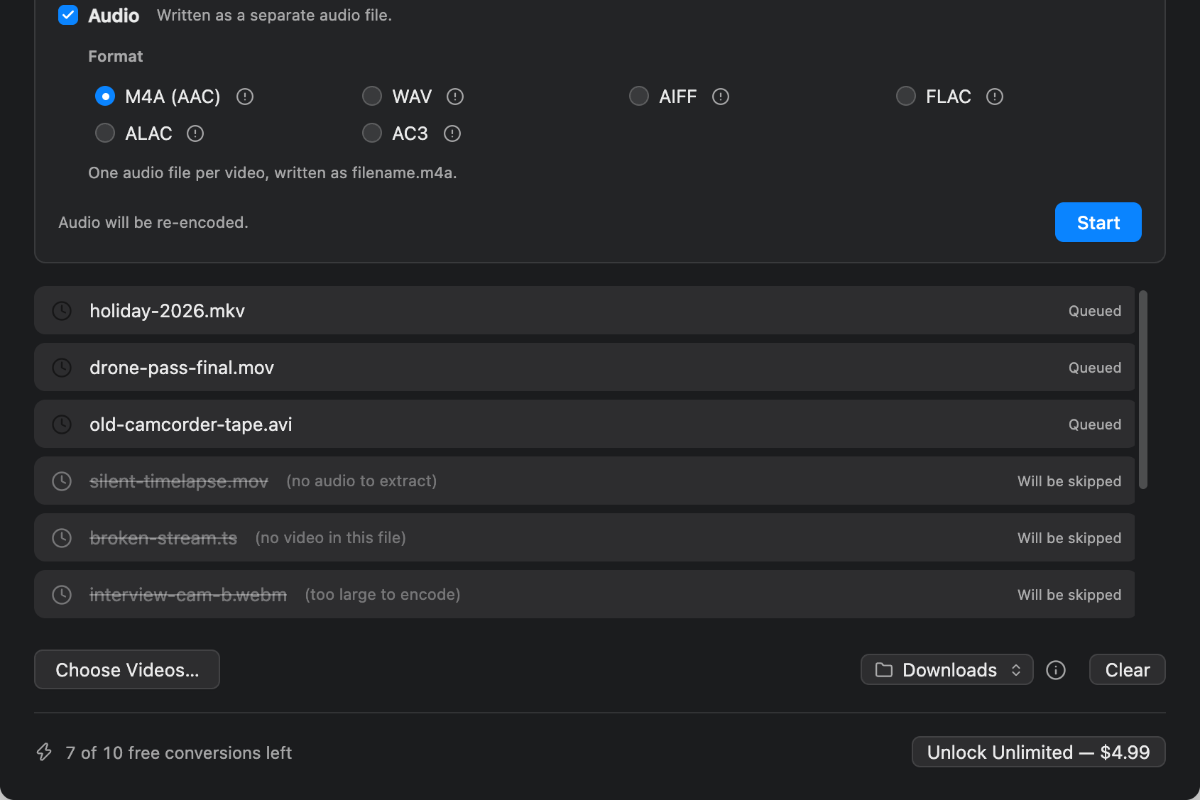
It means this file will produce nothing with your current settings. mp4ify says so before you press Start. The status reads Will be skipped.
• (no audio to extract) — Video is off, so you asked for sound only, and this file has none. Switch Video on for this file, or remove it.
• (no video in this file) — Video is on, so you asked for an MP4, and this file has no picture — an MP3, for example. Switch Video off for this file.
• (too large to encode) — over 4096 pixels, and this file must be re-encoded, so it cannot avoid the limit. Untick Keep the source size and set a smaller size.
Settings belong to each file, so fixing one does not disturb the others.
Struck-through row with its note
The conversion failed
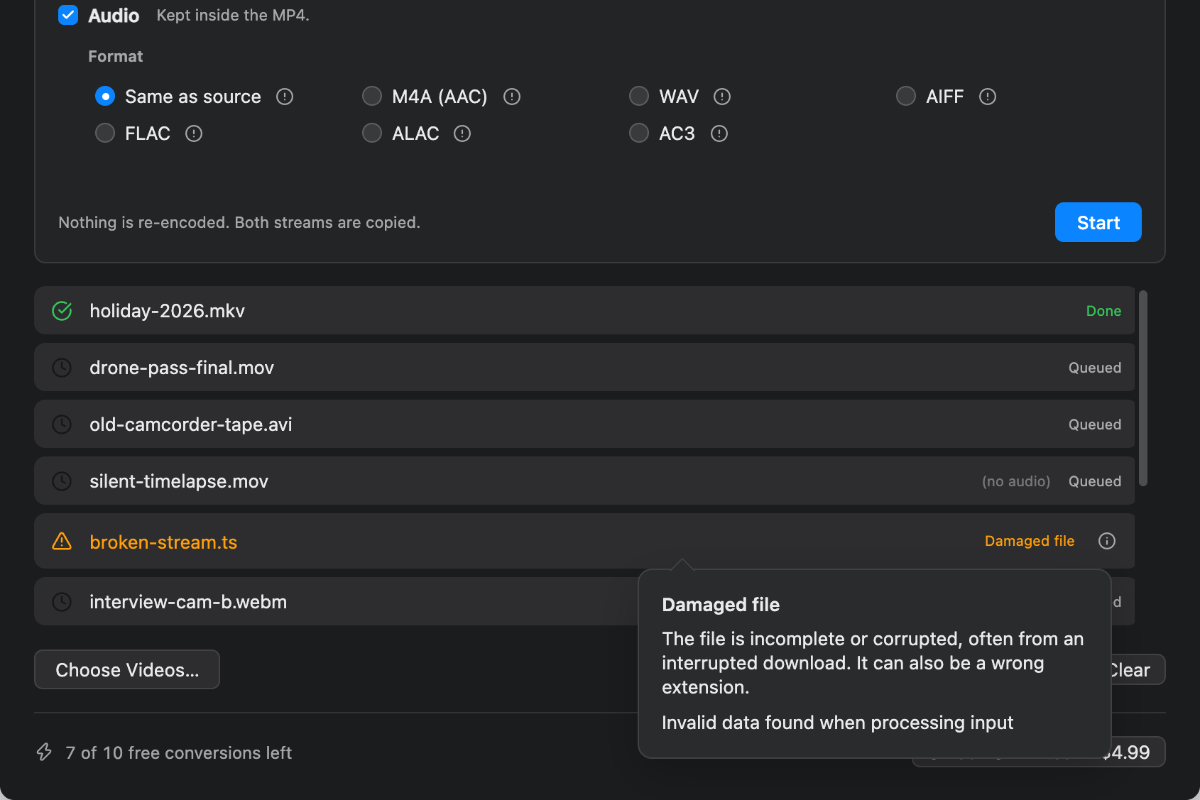
The row turns orange with a reason and an ⓘ. Click it for a plain explanation, with the converter's own message underneath.
• Damaged file — incomplete or corrupted, often from an interrupted download. It can also be a wrong extension. Try playing it elsewhere; if it will not play there either, the file is the problem.
• No video in this file — no usable stream was found. Often the file is empty or was never fully saved. Check its size in Finder; if it plays normally elsewhere, report it.
• Not enough disk space — out of room. An MP4 is usually close to the original's size. Free up that much on the drive you are saving to, which is not always the startup disk.
• Cannot write to this folder — access was refused, usually to the destination. Add the folder with the button at the bottom right, or save to Downloads.
• File not found — moved, renamed or deleted after being added. Add it again from where it is now.
• Unsupported format — rare. Very old or proprietary, with no decoder. Open it in another app and export once.
• Conversion failed — an error mp4ify does not recognise, so it will not guess. The converter's message is in the popover; that plus the file name is what is needed.
Failed conversions do not use free conversions. Only successful ones count.
Failure row with the ⓘ popover open
I dropped a folder and only some files appeared
That is deliberate. mp4ify looks inside the folder, subfolders included, and adds the videos. It leaves out what the system is certain is not video — photos, PDFs, documents, archives — and skips hidden files and app bundles.
Anything uncertain is added and tried, because macOS does not recognise every format mp4ify can convert.
If a real video was left out, report its extension.
Nothing happened when I dropped a file
Check the bottom row. If what you dropped had no video in it:
- That's not a video file.
For several files, none of them video:
- No video files in there.
Start is greyed out
• Nothing is queued.
• A conversion is already running. There is one converter; the batch finishes first.
• The size exceeds what your Mac can encode. The caption under Keep the source size will be orange.
Orange size caption with Start greyed
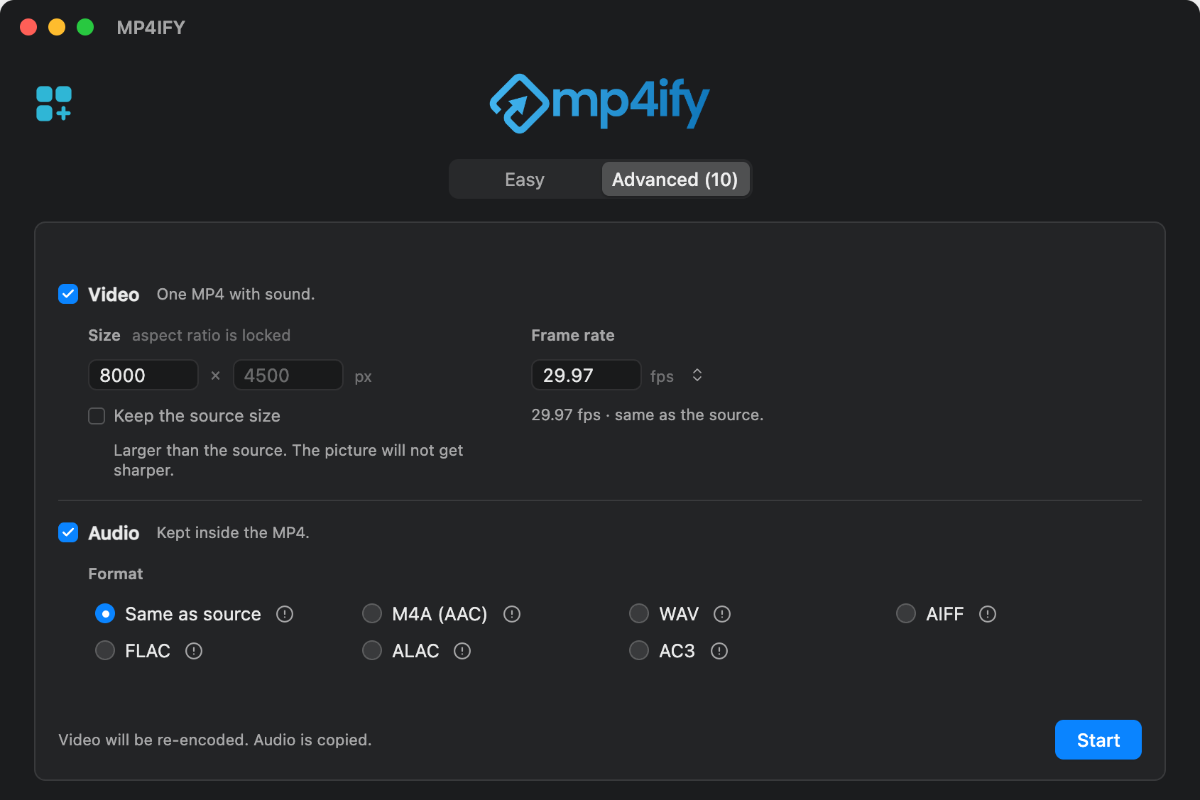
Enlarging did not make it sharper
It cannot. Enlarging stretches the picture that is there; the detail was never recorded.
- Larger than the source. The picture will not get sharper.
mp4ify still does it if you want. It just will not pretend it helps.
A higher frame rate did not smooth the motion
It cannot. The extra frames are copies.
- Frames will be duplicated. Motion will not get smoother.
Lowering the rate does throw frames away, so fast motion looks choppier.
I cannot switch off both Video and Audio
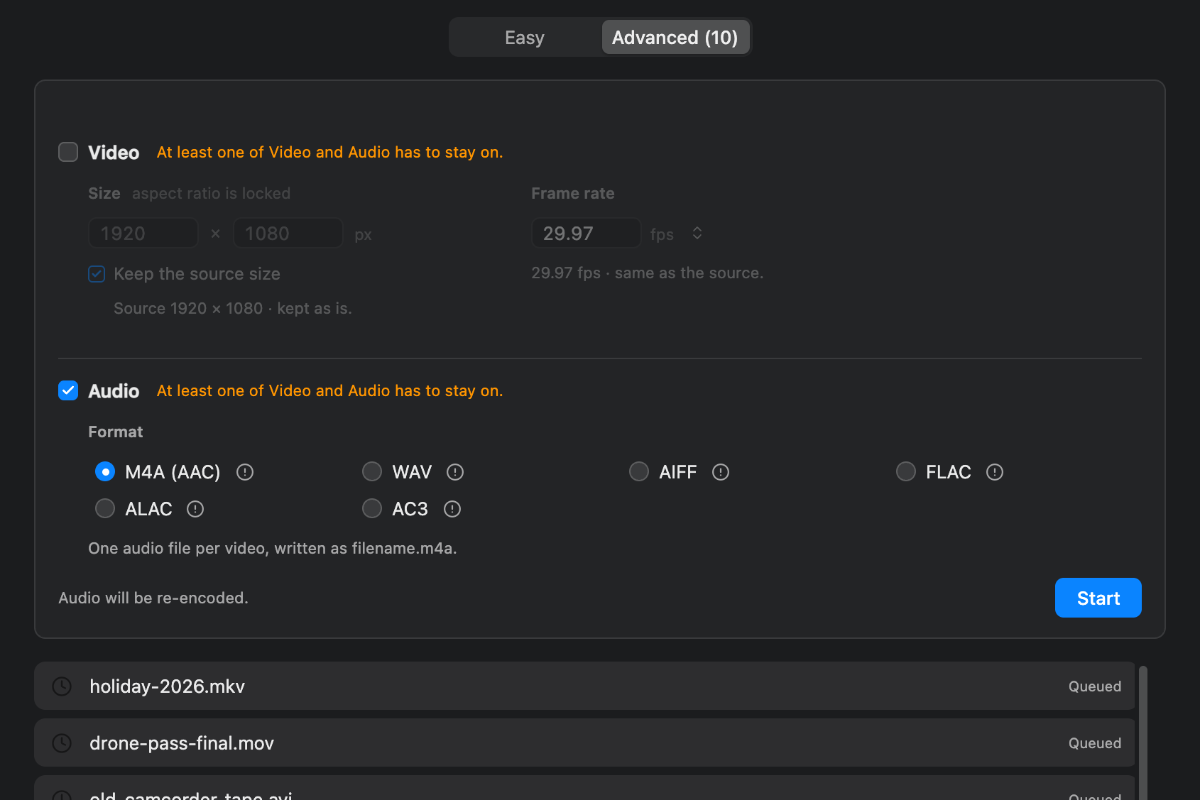
Correct — there would be nothing to write. The click is refused and both captions turn orange:
- At least one of Video and Audio has to stay on.
The checkbox stays clickable so you are told why.
The refusal
Changing one file changed several
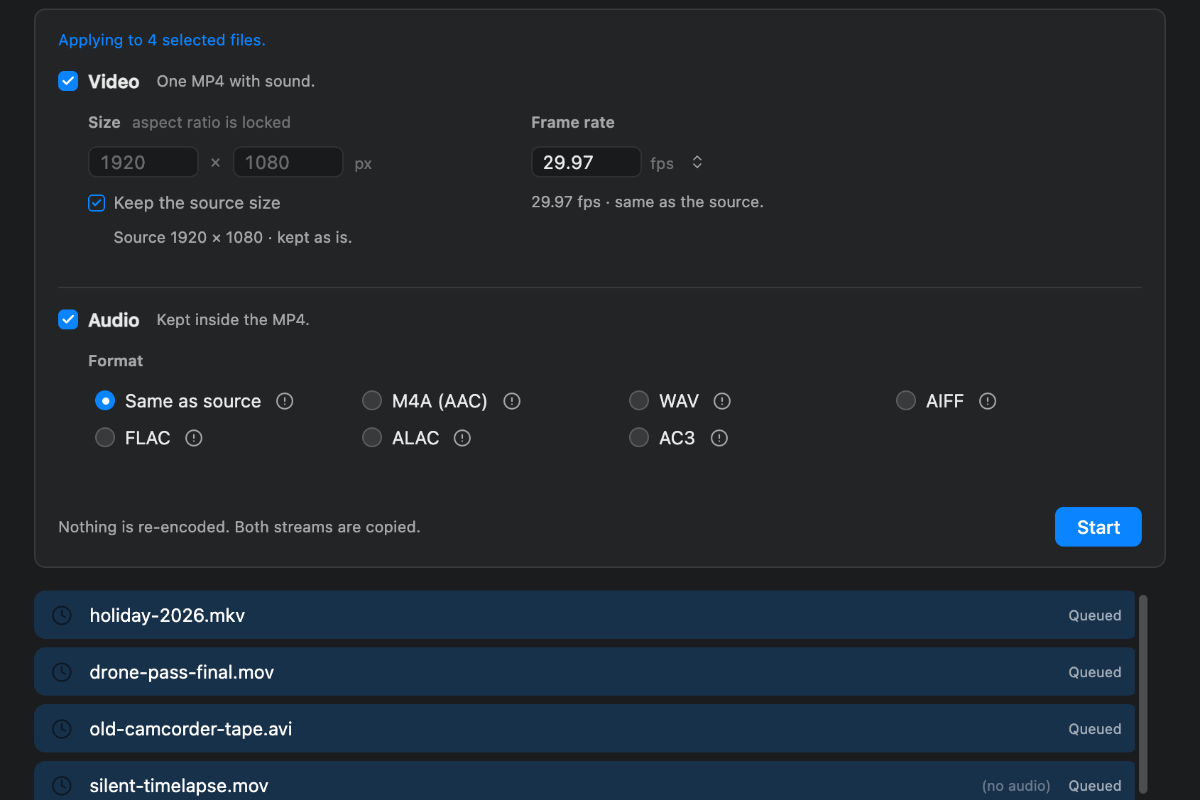
They were all selected. Settings belong to each file, and the selection is what the panel edits. With more than one selected, the panel says:
- Applying to 4 selected files.
Click a single row to edit one file, or press Esc to clear the selection.
Several rows selected
Reset did not switch Audio back on
That is correct if the file has no sound.
Reset returns a file to how it arrived — own size, own rate, own streams. A file with no audio arrives with Audio off and comes back that way. Reset cannot switch on what a file does not contain.
With nothing selected it resets every file; with files selected, only those.
The window is too small
Drag any edge, or use the green button for full screen. Extra height goes to the file list. It will not shrink below what the Advanced panel needs.
I cannot remove a file
A file converting right now cannot be removed. Press Cancel first.
Otherwise: select rows and use Remove, press Delete, or right-click and choose Remove from list.
I ran out of free conversions
mp4ify converts 10 files free, and only successful conversions count.
When they run out, the unlock sheet appears and the rest stay Queued. Buying resumes them automatically. Not Now leaves them queued.
Unlocking is a one-time purchase, not a subscription, and works on any Mac signed in to the same Apple Account — use Restore Purchase there.
Questions
Does converting change the quality?
Usually not at all. Picture and sound are normally copied untouched. When something must be rebuilt, the row says (Re-encoded).
Are my files uploaded?
No. Everything runs on your Mac. There is no server.
Does it change my originals?
No. Originals are never touched, and an existing file is never overwritten: clip_mp4ify.mp4 is followed by clip_mkv_mp4ify.mp4, then clip_mkv_mp4ify-1.mp4.
Where do converted files go?
Downloads, by default. To save them next to the originals, use the folder button at the bottom right and Add folder….
Can I convert an audio file?
Yes, in Advanced with Video off — MP3 to WAV, for instance. With Video on, an audio file is skipped rather than turned into an MP4 with no picture.
Can I keep working while it converts?
Yes. One file converts at a time, in the background, and you can keep adding.
How do I stop a batch?
Cancel. Finished files keep their results, the rest are marked Cancelled, and the half-written file is removed.